 SlidePiece
 help
Everything here is also in the app: tap the status dot at the top right to open Connect to Mac.
Getting started
- Connect the iPad to your Mac, with Bluetooth (recommended) or Wi-Fi. Nothing needs to be installed on the Mac.
- Map each SlidePiece control to a screen control in MainStage, once per concert.
- Play. The dot at the top of SlidePiece is green while it's connected.
The Mod Wheel and Pitch Bend Wheel work in most patches without any mapping at all.
Connect with Bluetooth
Recommended: no Wi-Fi needed, and it works anywhere.
- Turn on Advertise MIDI Service. In SlidePiece, tap the status dot, then Connect with Bluetooth, and switch on Advertise MIDI Service.
- Leave that screen open. The Mac can only find the iPad while it's showing. Do the next steps on the Mac, then come back.
- Open Audio MIDI Setup on the Mac. It comes with every Mac: press ⌘-Space and type Audio MIDI Setup, or find it in Applications › Utilities.
- Show MIDI Studio. Choose Window › Show MIDI Studio (⌘2), then click the Bluetooth button in the toolbar.
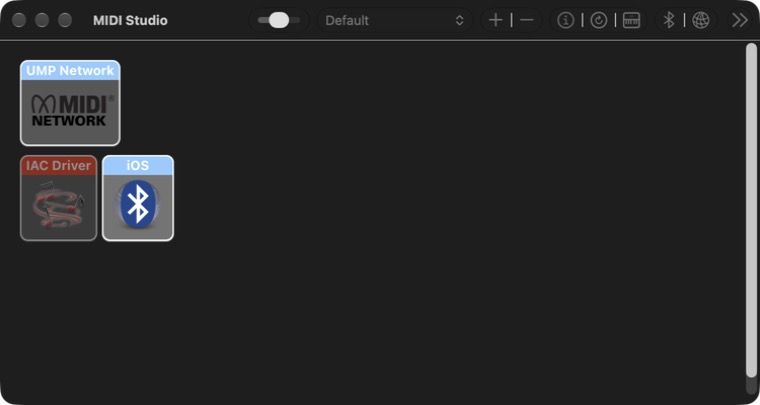
- Click Connect. The iPad appears in the list as iOS. Click Connect next to it. When it's paired, the button changes to Disconnect. You can close Audio MIDI Setup now.
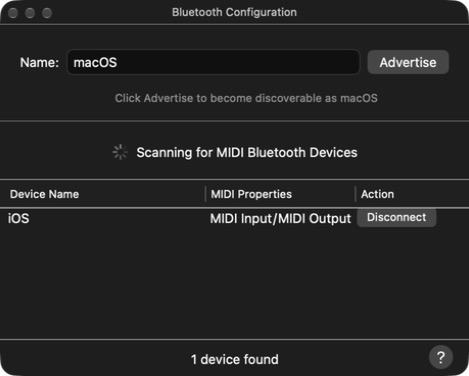
- Check the light. The dot at the top of SlidePiece turns green. MainStage now sees the iPad as a MIDI input called Bluetooth iOS.
Connect with Wi-Fi
Use this when Bluetooth isn't available. The iPad and Mac must be on the same Wi-Fi network, and some public or venue networks block it.
- Open MIDI Network Setup on the Mac. In Audio MIDI Setup, choose Window › Show MIDI Studio (⌘2), then click the network (globe) button in the toolbar.
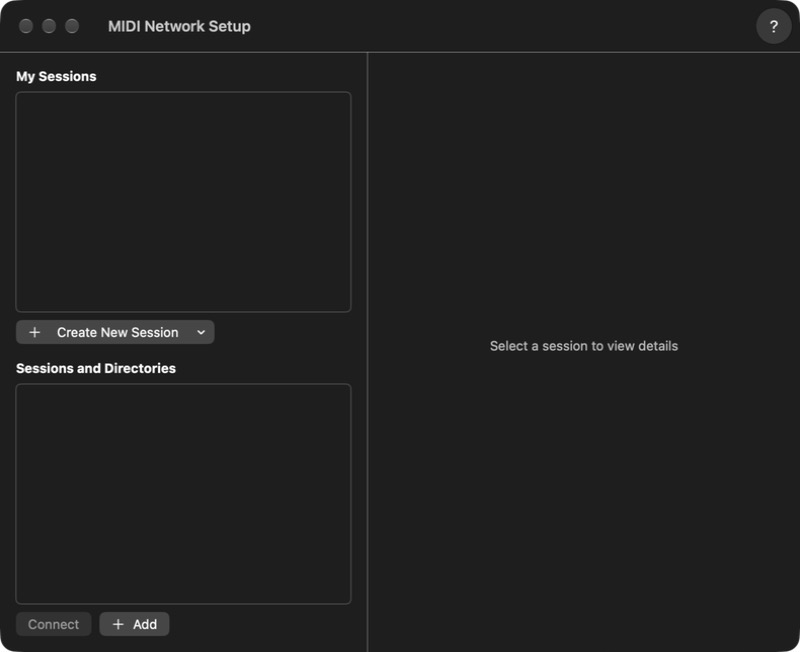
- Create a session. Click Create New Session and make sure the new session is turned on.
- Connect to the iPad. Under Sessions and Directories, select the iPad and click Connect.
- Check the light. The dot at the top of SlidePiece turns green and shows the session's name.
Map controls in MainStage
Each SlidePiece control is mapped like any hardware knob or button.
- Open Layout mode. Click Layout at the top left of MainStage.
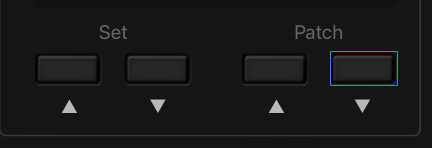
- Select a control. Click the button, pedal or slider on the layout that you want to use.
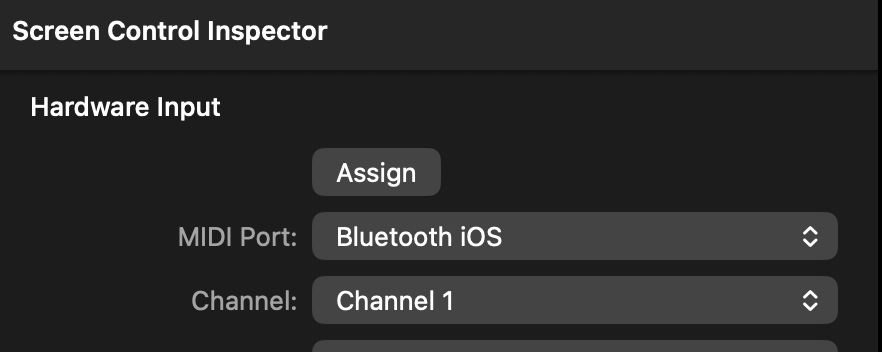
- Click Assign. In the Screen Control Inspector, click Assign, then move or tap the matching control in SlidePiece.
- Check it. MIDI Port shows Bluetooth iOS (or your Wi-Fi session) and Channel 1. That's it.
For the master fader: select MainStage's master volume control, click Assign, and move SlidePiece's Master fader. For patch buttons, map them in Layout mode, then choose the matching action (such as Next Patch) for that screen control in MainStage.
Edit your layout
Tap Edit at the top right. Every control gets a dashed outline.
- Add a control: tap + Add and pick one. If the grid is full, remove or shrink something first.
- Remove a control: tap its red ×.
- Resize a control: drag the yellow handle in its bottom-right corner.
- Change a control's settings: tap it to set its label, CC number and MIDI channel. For a button, choose what it does; for the pitch bend wheel, how fast it returns to center.
- Start over: tap Reset to go back to the default layout.
Tap Done when you're finished. The layout is saved on the iPad.
Controls and MIDI numbers
- Master Level: volume fader with a level-style scale. Map it to Master Volume.
- Vertical Fader: a general-purpose fader for any parameter.
- Mod Wheel: sends the mod wheel (CC 1), for Leslie speed, vibrato and so on.
- Pitch Bend Wheel: sends pitch bend and springs back to center when you let go: Fast, Medium, Slow, or No Return.
- Button: Previous or Next Patch, Previous or Next Set, or a custom CC.
- Text: your own note, such as a song title or reminder.
- Clock: the current time.
Default MIDI numbers (channel 1)
| Control | Sends |
|---|---|
| Master Level | CC 7 |
| Mod Wheel | CC 1 |
| Pitch Bend Wheel | Pitch bend |
| Previous Patch | CC 20 |
| Next Patch | CC 21 |
| Previous Set | CC 22 |
| Next Set | CC 23 |
You can change any control's number in Edit mode by tapping it.
Reconnecting
Quitting and reopening SlidePiece or MainStage keeps the connection. A restart of the Mac or iPad may need these steps.
- Open the Bluetooth screen on the iPad. In SlidePiece, tap the status dot, then Connect with Bluetooth, and leave that screen open.
- Connect again on the Mac. In Audio MIDI Setup › MIDI Studio › Bluetooth, click Connect next to iOS.
- Still nothing? Make sure Bluetooth is on for both. In the Mac's Bluetooth Configuration window, click Disconnect, then Connect again. MainStage keeps your mappings.